



21 Ago How to Set Up the Popular RetroArch
Emulation is an important and popular tool, particularly when it comes to preserving retro video games and the culture surrounding them. This is where RetroArch comes in. Primarily focused on retro emulation, it stands out for its versatility and extensive platform support, even running on smartphones.
The emulator is easy to get from its official website or through Steam if you want it on PC, and from the App Store or Google Play if you want to use it on your phone. The first thing you should do is make sure everything related to the emulator itself is up to date. To do this, go to Online Updater and simply select or click on each option to make sure all the necessary resources are installed correctly.
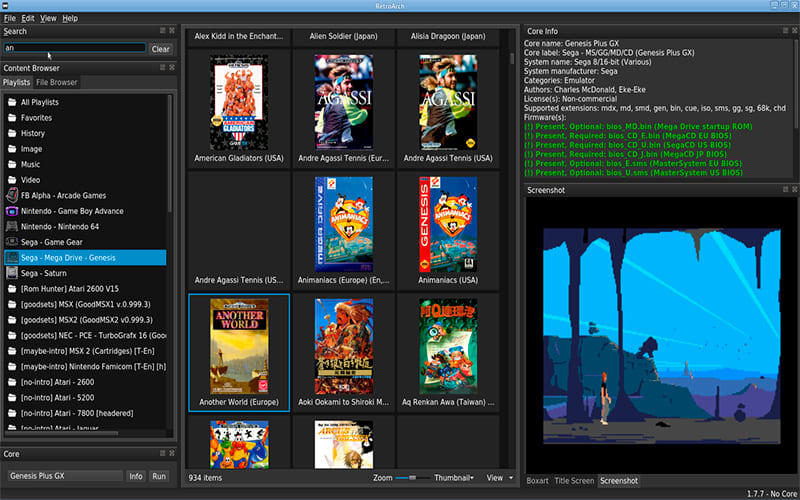
If you find the interface confusing or simply don’t like its appearance, you can customise it by going to User Interface → Appearance. You can even make the interface look like the PlayStation 3 menu. To do this, go to Settings → Drivers and select “xmb”. You will need to restart the app for all these changes to take effect.
Next, you should create a folder for the video games you have downloaded and want to emulate. The easiest option is to create a folder called RetroArch within your Files app. This is where you can store your downloaded games, which the emulator will then recognise and assign to the appropriate platform. For example, if the app recognises that a game is for PSP, it will open it using the corresponding emulator core. To install your downloaded titles, go to Load File → Browse and select the folder where you have stored them. One thing that can make the process much easier is creating separate folders for each console. For example, create a PlayStation 1 folder and store all your PS1 games there. Then create another folder for Super Nintendo games, and so on for every title and console you want to emulate. RetroArch is known for its extensive versatility and platform support, allowing it to emulate a wide range of systems. These include:
- 2048
- Amstrad – CPC (CrocoDS)
- Amstrad – CPC/GX4000 (Caprice32)
- Arcade (FinalBurn Neo)
- Atari – 2600 (Stella 2014)
- Atari – 2600 (Stella)
- Atari – 5200 (Atari800)
- Atari – 5200 (a5200)
- Atari – 7800 (ProSystem)
- Atari – Lynx (Handy)
- Bandai – WonderSwan/Color (Beetle Cygne)
- Commodore – Amiga (PUAE)
- Commodore – C128 (VICE x128)
- Commodore – C64 (VICE x64, fast)
- Commodore – C64 (VICE x64sc, accurate)
- Commodore – C64 SuperCPU (VICE xscpu64)
- Commodore – CBM-II 5×0 (VICE xcbm5x0)
- Commodore – CBM-II 6×0/7×0 (VICE xcbm2)
- Commodore – PET (VICE xpet)
- Commodore – PLUS/4 (VICE xplus4)
- Commodore – VIC-20 (VICE xvic)
- Dinothawr
- Fairchild ChannelF (FreeChaF)
- GCE – Vectrex (vecx)
- Game Music Emu
- Handheld Electronic (GW)
- MSX/SVI/ColecoVision/SG-1000 (blueMSX)
- Mattel – Intellivision (FreeIntv)
- NEC – PC Engine / CD (Beetle PCE FAST)
- NEC – PC Engine / SuperGrafx / CD (Beetle PCE)
- NEC – PC Engine SuperGrafx (Beetle SuperGrafx)
- NEC – PC-98 (Neko Project II Kai)
- Nintendo – DS (DeSmuME)
- Nintendo – Game Boy / Color (Gambatte)
- Nintendo – Game Boy / Color (Gearboy)
- Nintendo – Game Boy / Color (SameBoy)
- Nintendo – Game Boy / Color (TGB Dual)
- Nintendo – Game Boy Advance (VBA Next)
- Nintendo – Game Boy Advance (VBA-M)
- Nintendo – Game Boy Advance (gpSP)
- Nintendo – Game Boy Advance (mGBA)
- Nintendo – NES / Famicom (FCEUmm)
- Nintendo – NES / Famicom (Mesen)
- Nintendo – NES / Famicom (Nestopia UE)
- Nintendo – NES / Famicom (QuickNES)
- Nintendo – Nintendo 64 (Mupen64Plus-Next)
- Nintendo – SNES / SFC (Snes9x 2005)
- Nintendo – SNES / SFC (Snes9x 2010)
- Nintendo – SNES / SFC (Snes9x)
- Nintendo – SNES / SFC (bsnes)
- Nintendo – SNES / SFC (bsnes-hd beta)
- Nintendo – SNES / SFC / Game Boy / Color (Mesen-S)
- Nintendo – Virtual Boy (Beetle VB)
- PocketCDG
- Quake (TyrQuake)
- Rick Dangerous (XRick)
- SNK – Neo Geo AES/MVS (Geolith)
- SNK – Neo Geo CD (NeoCD)
- SNK – Neo Geo Pocket / Color (RACE)
- ScummVM
- Sega – MS/GG (SMS Plus GX)
- Sega – MS/GG/MD/CD (Genesis Plus GX Wide)
- Sega – MS/GG/MD/CD (Genesis Plus GX)
- Sega – MS/GG/MD/CD/32X (PicoDrive)
- Sega – MS/GG/SG-1000 (Gearsystem)
- Sega – Saturn (Beetle Saturn)
- Sharp – X68000 (PX68k)
- Sinclair – ZX Spectrum (Fuse)
- Sony – PlayStation (Beetle PSX HW)
- Sony – PlayStation (Beetle PSX)
- Sony – PlayStation (PCSX ReARMed)
- Sony – PlayStation Portable (PPSSPP)
- Texas Instruments TI-83 (Numero)
- Thomson – MO/TO (Theodore)
- Vircon32
- VirtualXT
- WASM-4
- Watara – Supervision (Potator)
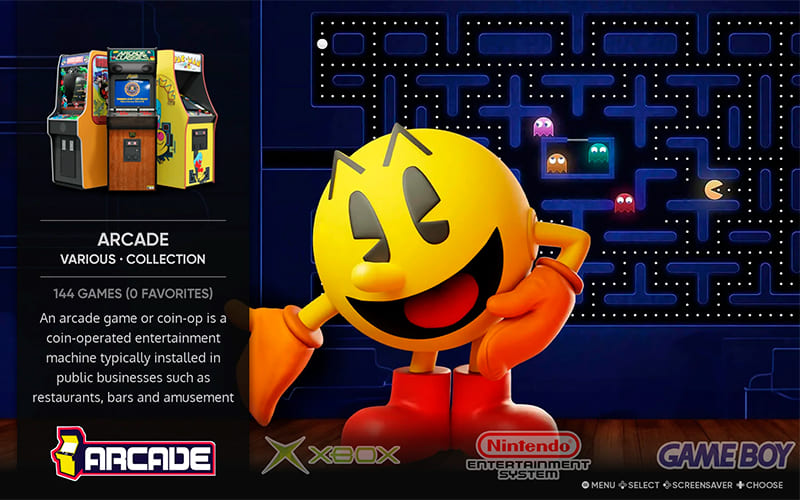
One of the reasons RetroArch has become so popular recently is that it runs on virtually anything. Beyond PC and mobile, it is one of the preferred apps for emulation on the Steam Deck and other Linux- or Android-based handheld consoles that have appeared in recent years. The installation process is the same: download the cores through the Online Updater and load your games folder. If you want everything to have a CRT monitor-style look, you can also combine it with ShaderGlass. Keep in mind that RetroArch is only the emulator, so always obtain ROMs and game BIOS files legally from games you already own.
Sorry, the comment form is closed at this time.